

What Luma Text to Image is good at
- High-quality text-to-image generation: Creates photorealistic content and artistic style images from text prompts
- Style references: A
style_imageinput guides the look of the result, withstyle_image_weightcontrolling the style reference image’s influence - Image and character references: The
image_luma_refinput supports reference-guided generation, with up to 4 reference images and character references usable simultaneously
Example outputs
Style-guided generation at differentstyle_image_weight values, showing the style reference image’s influence:
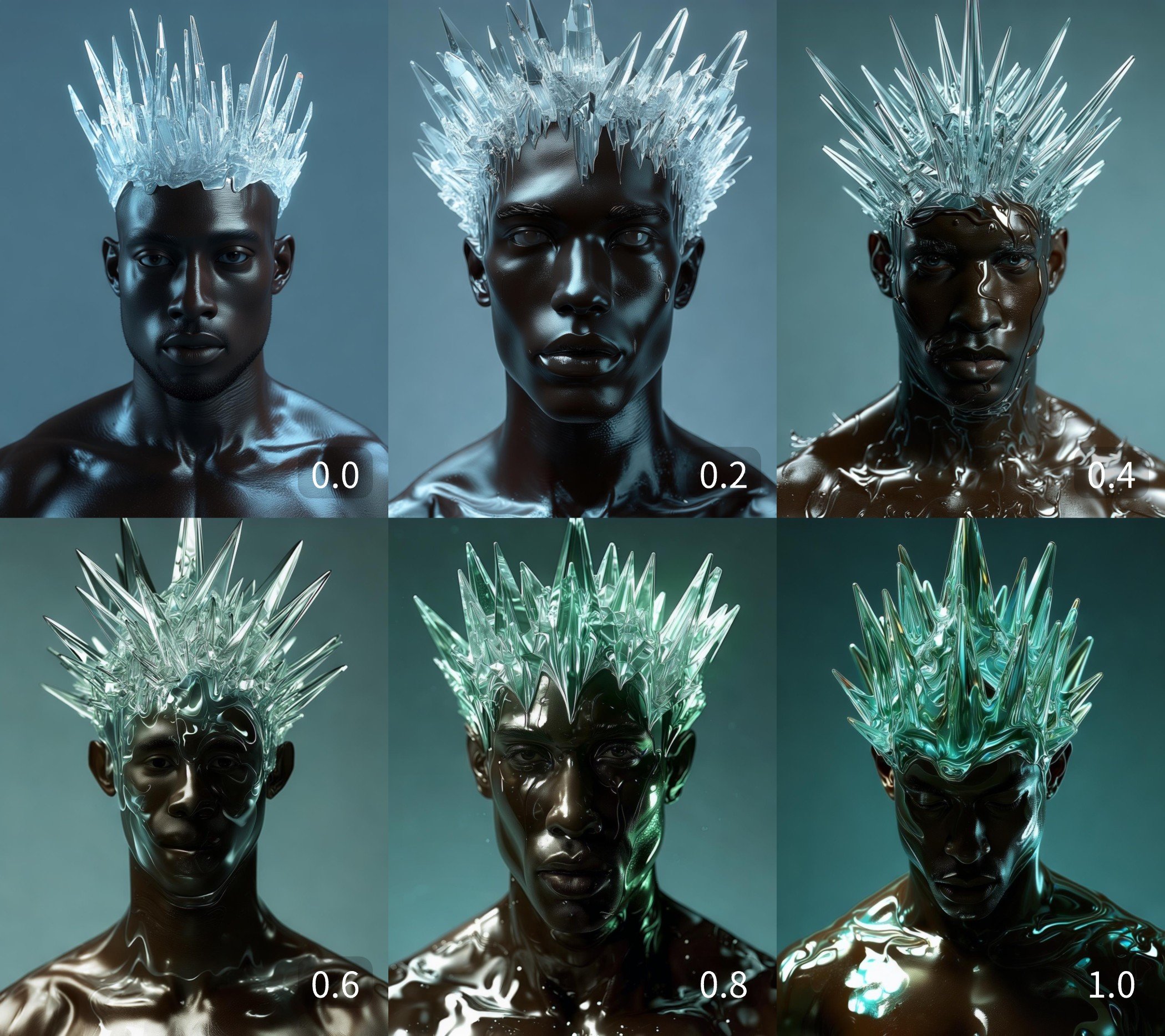
Luma Text to Image Partner Nodes Workflow
When theLuma Text to Image node is used without any image inputs, it functions as a text-to-image workflow. In this guide, we’ve created examples using style_image and image_luma_ref to showcase Luma AI’s excellent image processing capabilities.
1. Download Workflow Files
The workflow information is included in the metadata of the image below. Download and drag it into ComfyUI to load the workflow.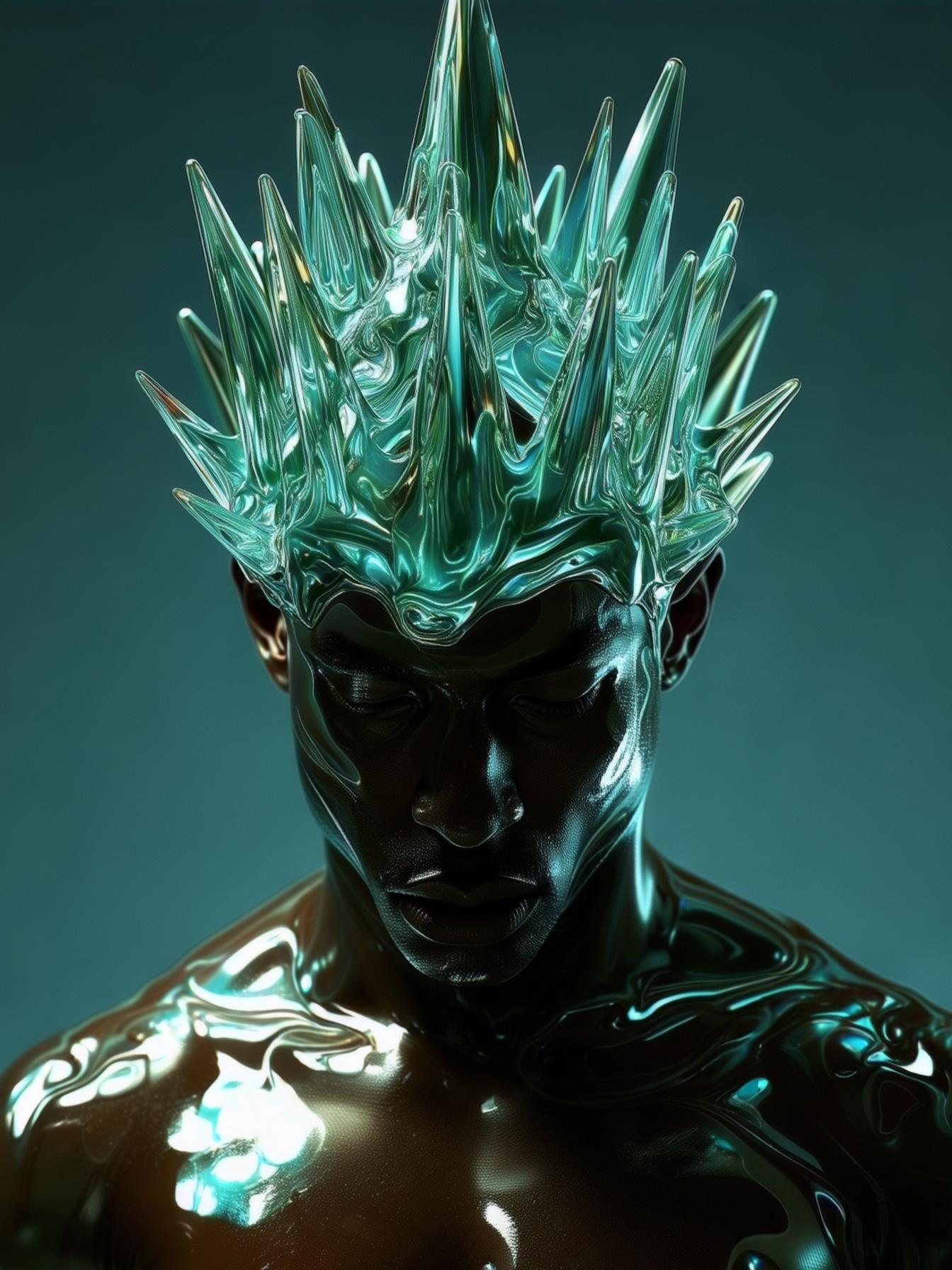 Please download these images for input:
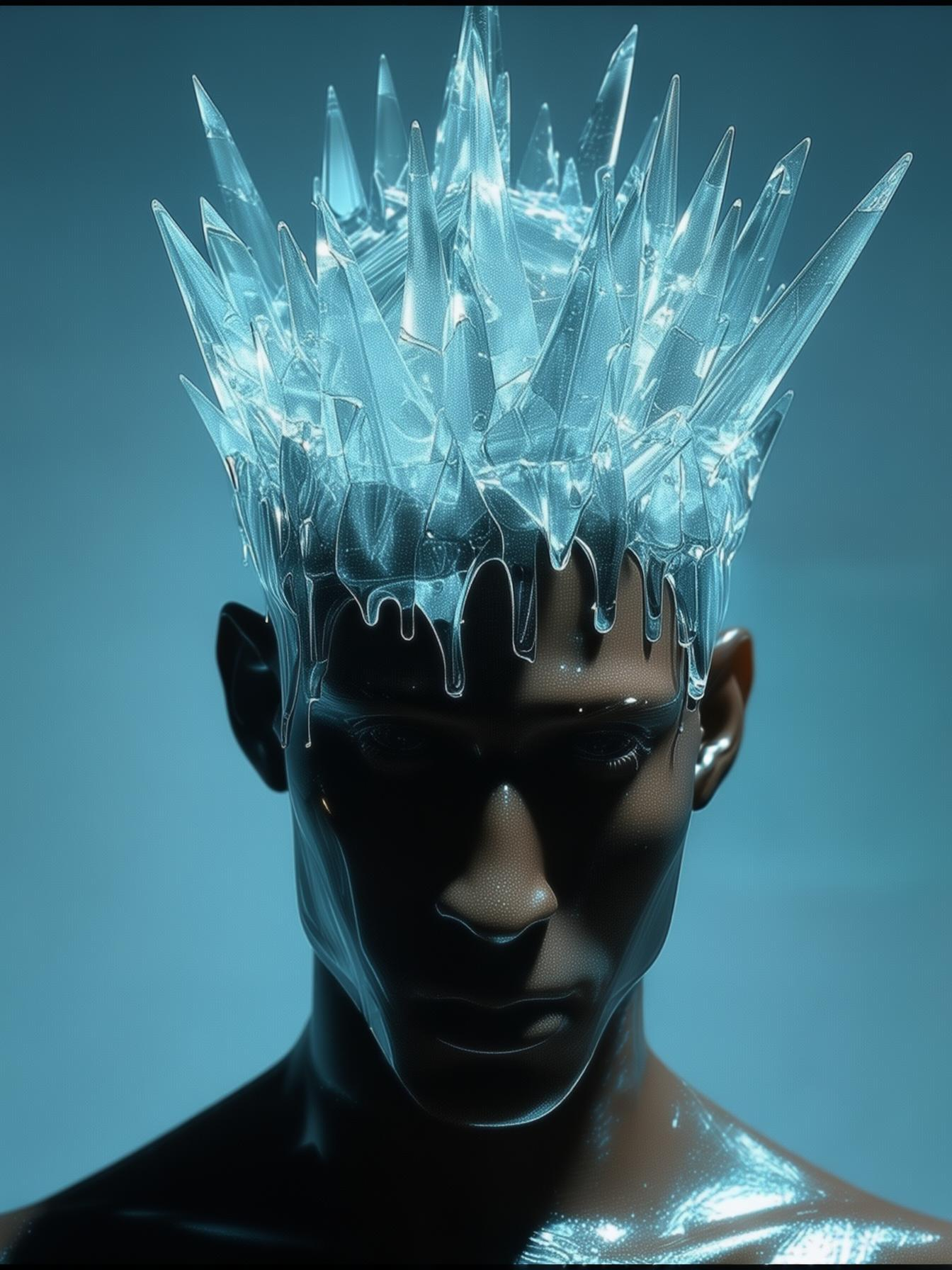
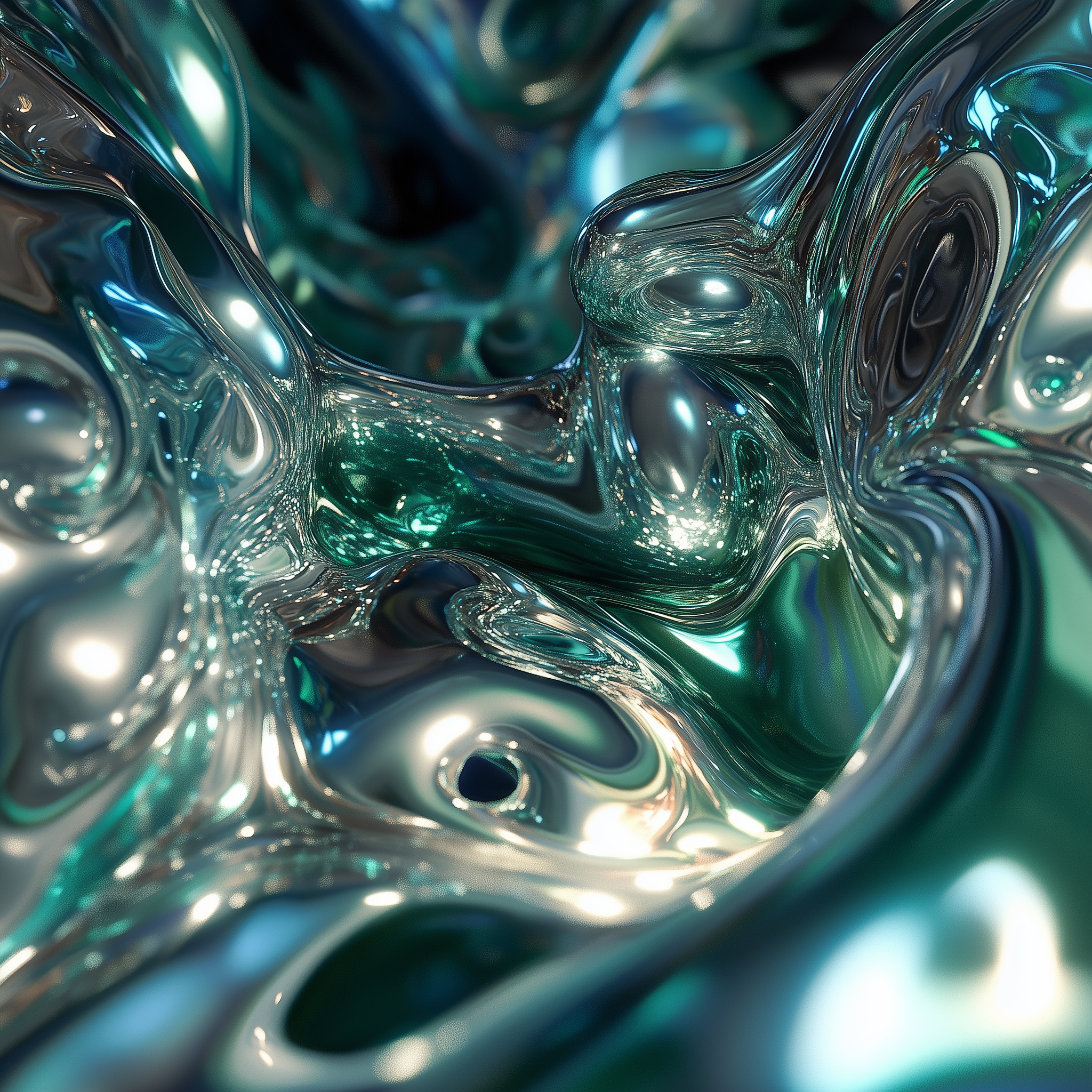
2. Follow Steps to Run the Workflow
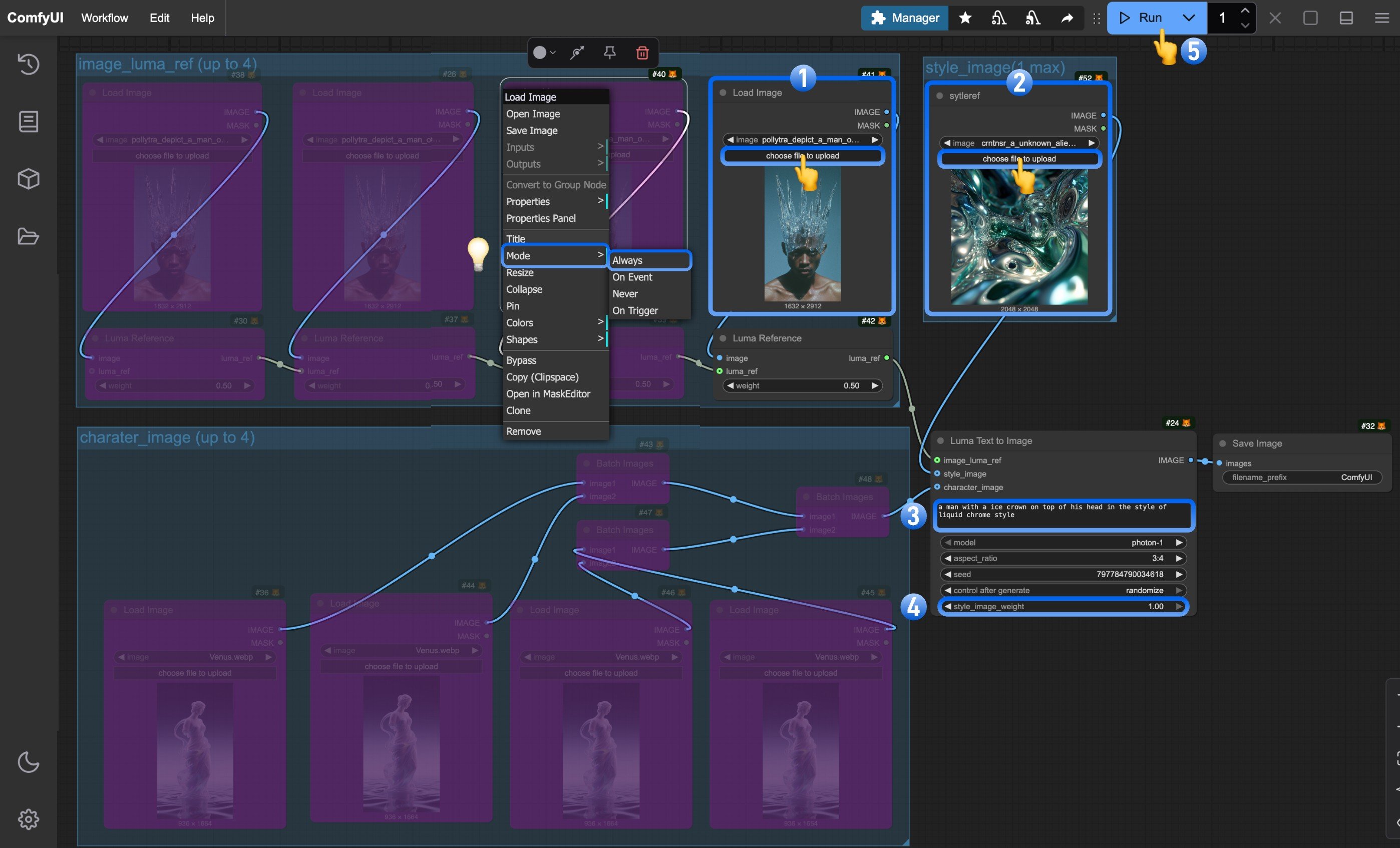
- Upload the reference image in the
Load imagenode - Upload the style reference image in the
Load image (renamed to styleref)node - (Optional) Modify the prompts in the
Luma Text to Imagenode - (Optional) Adjust the
style_image_weightto control the style reference image’s influence - Click the
Runbutton or use the shortcutCtrl(cmd) + Enterto generate the image - After the API returns results, view the generated image in the
Save Imagenode. Images are saved to theComfyUI/output/directory
3. Additional Notes
- The node allows up to 4 reference images and character references simultaneously.
- To enable multiple image inputs, right-click on the purple “Bypassed” nodes and set their
modetoalways